GENERAL
AI PPT Maker for Teachers: Turn Lesson Notes into Slides That Leave Room to Teach

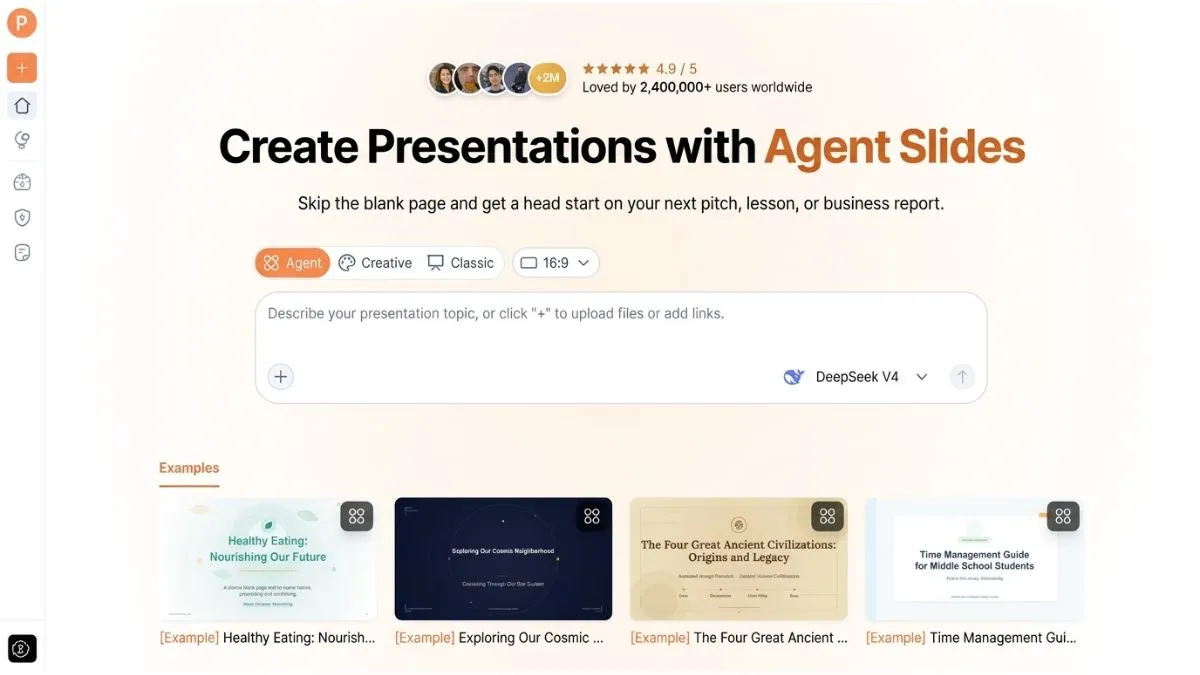
Sunday evening arrives, and next week’s lesson is mostly ready. You know the topic, have chosen the reading, and have a few good examples. What you do not have is a slide deck. AI PPT Maker can help turn those existing materials into a presentation draft, giving you something concrete to review before class.
For teachers, the goal is not simply to put information on a screen. Slides need to support explanation, questions, and practice. A deck that repeats every sentence from your notes may be complete, but it leaves students with too much to read while you are speaking.
AI PPT Maker is useful when you approach it with a teaching plan rather than a request to fill twenty pages.
Table of Contents
Start with What Students Should Be Able to Do
Before uploading notes, finish this sentence: “By the end of the lesson, students should be able to…”
That answer gives the presentation a purpose. A lesson on persuasive writing, for example, might aim to help students identify a claim, distinguish evidence from opinion, and write a supported argument.
Those goals suggest a sequence: introduce the idea, show an example, examine it together, and give students a chance to try.
Tell AI PPT Maker about the learning goals and the class. Include what students already know, which terms need explaining, and how much time you have.
Write a Teaching Brief, Not Just a Topic
“Create a presentation about persuasive writing” is a starting point, but it leaves important decisions open.
A more useful request would be:
Create a lesson presentation for students learning persuasive writing. Explain claims, evidence, and reasoning in plain English. Include one example to discuss together and one short practice activity. Students already understand paragraph structure. Avoid long paragraphs on slides.
AI PPT Maker now has context for the content and its order. You still need to check whether the examples suit your students and whether the explanations are accurate.
Use Existing Notes Without Putting Everything on Screen
AI PPT Maker accepts pasted text and uploaded documents, including DOC, DOCX, and PDF files. That means you can begin with your lesson notes or a handout you have already prepared.
The important decision is what belongs in the presentation.
A definition might need to appear in full. A detailed explanation could become a short heading and an example. Background reading may belong in the handout rather than on a slide.
Separate these roles in your instructions. Identify essential terms, material that can be shortened, and details you plan to explain aloud.
AI PPT Maker gives you a draft to evaluate. It does not know which misconception your class struggled with last week unless you explain it.
Build the Lesson in Agent Mode
Agent mode supports a conversational workflow, which is helpful when your teaching plan becomes clearer as you work.
You might begin with a broad request, then add context:
Students often confuse evidence with a strong personal opinion. Give that distinction more attention.
Another follow-up could ask for simpler language or a more familiar example. With AI PPT Maker, those details can become part of the developing brief.
Make Examples Familiar Enough to Discuss
An example should help students understand the concept without requiring a second lesson to understand the context.
For persuasive writing, a school-related question may be easier to discuss than an unfamiliar business case. For mathematics, a simple purchasing example may work better than a complicated financial scenario.
Review every generated example. Check the answer, the wording, and the assumptions. A convincing-looking explanation can still contain a mistake.
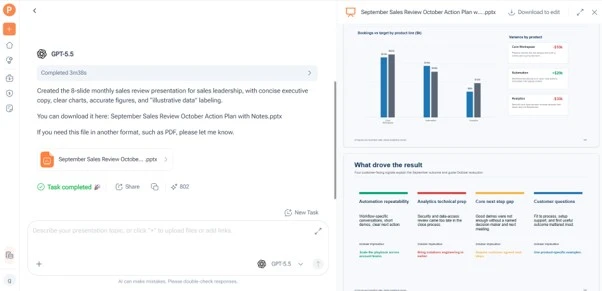
Agent exports PPTX, allowing you to continue editing in PowerPoint before teaching.
Check the Outline for Opportunities to Participate
All three modes in AI PPT Maker allow outline review before slide generation. Use that stage to check the lesson’s rhythm.
A sequence of definitions followed by more definitions can become tiring. Look for places where students can predict, compare, explain, or practise.
For the persuasive writing lesson, the outline might include:
- A question that introduces the topic.
- A short explanation of claims and evidence.
- An example to examine together.
- A comparison between two arguments.
- A brief writing activity.
- A closing question to check understanding.
These are planning suggestions you can request in the presentation, rather than built-in assessment features. Adjust them to fit your classroom.
AI PPT Maker can help organize the sequence, while you decide whether the activities are manageable.
Choose Visuals and Downloads with the Classroom in Mind
A visually expressive presentation can be useful, but the design should support the lesson.
Creative mode in AI PPT Maker offers a more visual approach and exports PNG images. Consider it when finished visual pages suit your teaching materials.
If you expect to adjust individual text elements in PowerPoint, Agent or Classic may be more appropriate because both support PPTX downloads. Classic also offers formats including PDF and Keynote.
AI PPT Maker provides more than 1,000 templates. When choosing one, think about the classroom screen: small text, elaborate backgrounds, and weak contrast can make otherwise useful content difficult to read.
Keep the Slide Focused
Give each page a clear job. One might introduce a term; another might show an example; a third might display a practice question.
You do not need every part of your explanation written on the slide. Leave space for students to listen and think.
Rehearse the Lesson, Not Just the Slides
Before class, read through the deck while imagining where you will pause. Check that questions appear at the right moment and that answers are not accidentally revealed too early.
Verify definitions, examples, spelling, and any figures against your source materials. Test the presentation on the equipment you plan to use.
Other options include PPT Maker and NoteGPT’s AI Slide Generator. For this lesson, keep your attention on checking the AI PPT Maker draft against your learning goals.
Prepare One Lesson You Know Well
AI PPT Maker can help turn familiar teaching materials into a draft that is easier to shape for your classroom. Start with one lesson you already understand, explain the learning goals, and review the outline for places where students can participate. Try AI PPT Maker as part of your next preparation session, then refine the slides and rehearse the lesson. PPT Maker is another option to keep in mind as you develop your approach to presentation work.


Why Recurrent Cleaning Services Keep Homes Spotless All Year

AI PPT Maker for Teachers: Turn Lesson Notes into Slides That Leave Room to Teach

Chief Technical Examiner: Roles, Rules and Responsibilities

When Should You Visit an Orthopaedic Clinic for a Sports Injury?

How to Choose an E-Bike for a More Active Everyday Lifestyle

What is Chin Mudra? Discover Its Meaning and Health Benefits

Classroom20x: Future of Hybrid Learning Explained

Exploring the World of Futbolear: A Comprehensive Guide

LeahRoseVIP: Trusted Lifestyle Magazine for Holistic Wellbeing

Daily Spine Care: Simple Habits for Less Strain and More Comfortable Movement

Switching 2nd: Understanding the Shift into Second Gear

Hamro Solar LLC: Leading Renewable Energy Solutions

Ausbeulstation: Advanced Automotive Dent Repair

AHGRL in AI: Scalable Graph-Based Reinforcement Learning

Do a Barrel Roll: Iconic Gaming Phrase and Google Trick
-
 GENERAL1 year ago
Christofle – For Those Who Dream of Family Heirloom Silver
-
GENERAL10 months ago
Uncovering the World of кинокрадко: The Dark Side of Film Piracy
-
SPORTS3 months ago
Discover the World of Football with Streameast: Watch Your Favorite Leagues and Tournaments
-
HOME IMPROVEMENT2 years ago
Spacious and Stylish 300cm Round Rugs: Elegant and Modern Designs for a Chic Home Decor